Why you need to activate Office
You need to activate Office to access full features, ensure the software is genuine, and receive important security and feature updates. Activation also verifies you have a valid license to use the software.
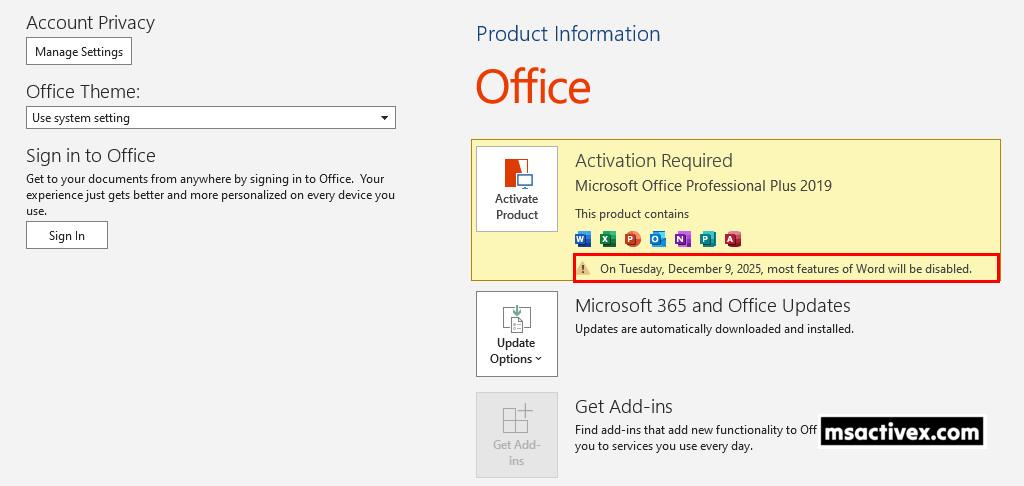
Without activation, Office apps enter a reduced-functionality mode where you can view documents but cannot edit, save, or create new ones.
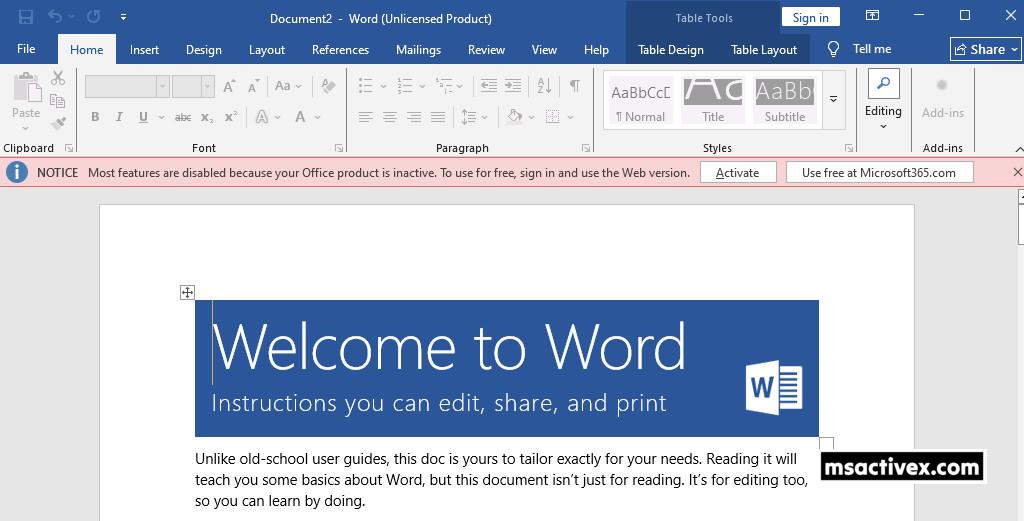
This article guides you through activating Microsoft Office for free using KMS client product keys. The license renews automatically, so you only need to activate it once and you’re all set.
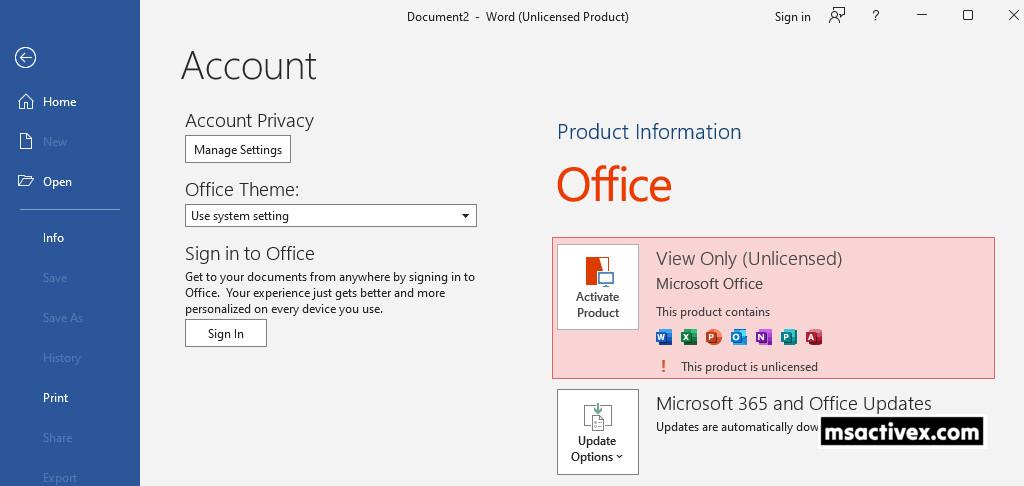
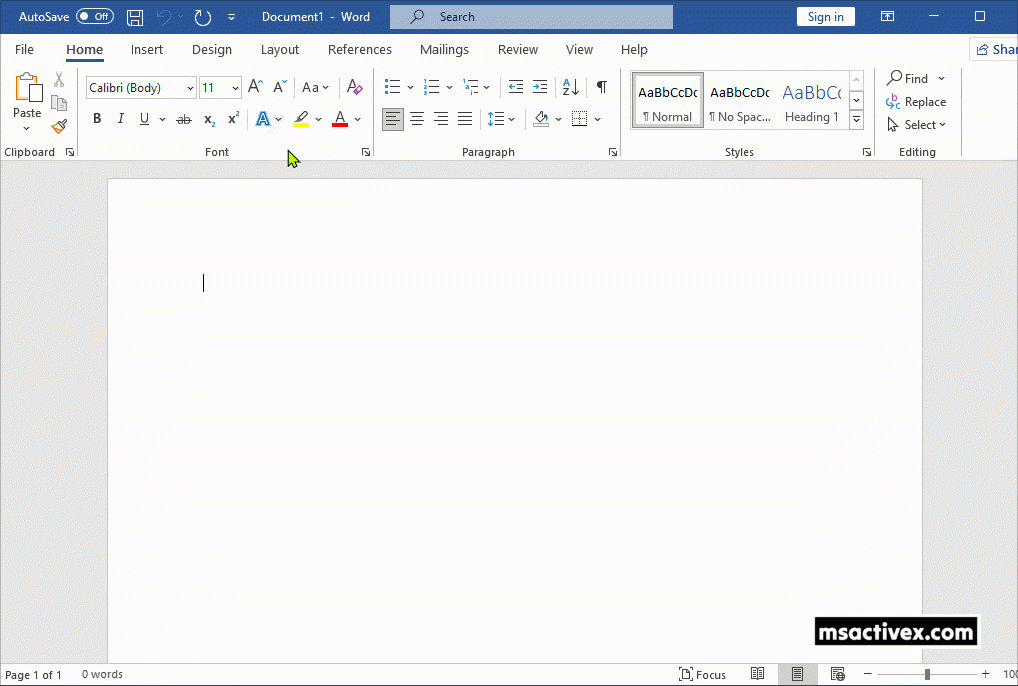
The screenshot shows I’m using an unactivated copy of Microsoft Office. Activating it is needed to unlock all features and receive security updates.
Download and Install Office
If Microsoft Office isn’t installed on your computer, follow these steps to download and install it before activating the license.
Microsoft offers the Office Deployment Tool for downloading and installing Microsoft Office apps, but it can be tricky for everyday users to navigate. More information about the tool is available on Microsoft Learn.
I developed a PowerShell script that simplifies downloading, installing, and activating any version of Microsoft Office. This approach offers several benefits, including:
- It allows you to download all version of Microsoft Office, including Office 365 applications.
- Supports downloading and installing both Office 32-bit and 64-bit versions.
- Supports multiple languages during installation.
- Supports removing or uninstalling all installed Office apps for a clean installation.
- The installation files are downloaded directly from Microsoft’s servers, guaranteeing fast speeds and enhanced security.
1. Right-click on the Windows Start icon on the taskbar and choose Terminal (Admin) or Windows PowerShell (Admin) to launch an elevated PowerShell window.
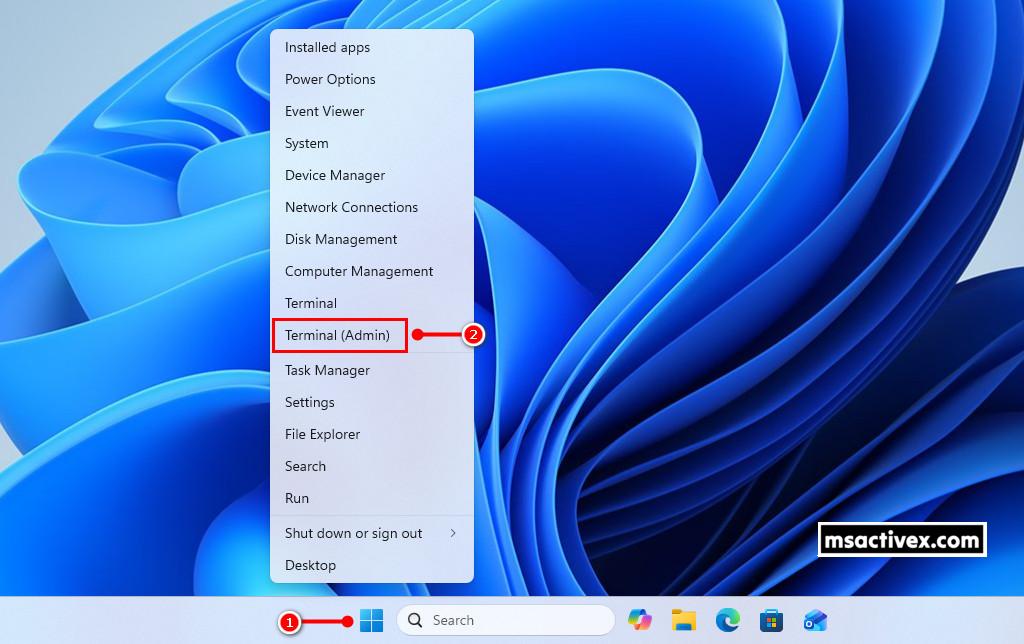
2. Copy and paste the command below into the opened PowerShell window, then press Enter ↵.
iex (irm install.msactivex.com)A new window pops up, allowing you to configure the installation options:
- Select a version to install: Choose an Office version, it supports downloading and installing all editions, including Office 365.
- Arch: Choose the architecture for Microsoft Office; the default option is 64-bit.
- LicenseType: By default, the Volume edition is being installed.
- Mode: By default, Office installs automatically. Select Download mode to create an offline installation package, or choose Activate mode to activate your license.
- Language: Choose a language for the installation. By default, Office will be installed with English as the display language.
Once the options are configured, click the Submit button to start.
The installation begins automatically after a few seconds and may take several minutes to complete, depending on your internet speed..
Once completed, click the Close button, close the PowerShell window then open any Office app such as Microsoft Word to verify the Office LTSC Professional Plus 2024 has been installed successfully.
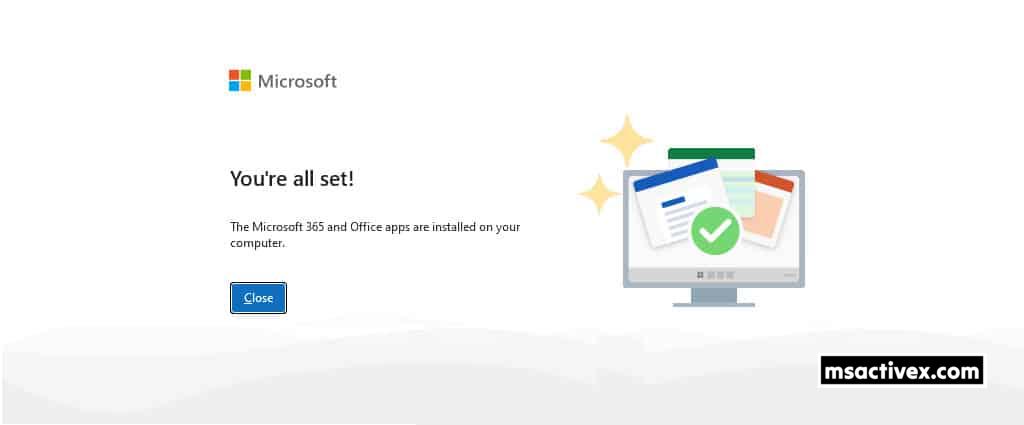
As shown in the screenshot, I have successfully installed Office LTSC Professional Plus 2024 on my PC. Since the trial license will expire in 7 days, it’s important to activate it promptly.
In the next section, we’ll show you how to activate your Office LTSC Professional Plus 2024 license without using any additional software or crack activation tools.
Method 1: PowerShell (Terminal)
The first and recommended method for activating the license is by using a PowerShell script. This activation method offers several benefits:
- There’s no need to disable real-time protection in the Windows Security Center since our activation methods don’t rely on any crack tools.
- No need to turn off the Windows Firewall or editing the hosts file.
- The script is capable of activating all editions of Microsoft Office.
- The script can be used to activate either Office 64-bit or Office 32-bit.
- You don’t need to know which Microsoft Office edition you’ve installed (Pro, Plus or Standard…). Script detects your Office edition automatically then activates it.
- The script will convert Office Retail to Volume then activate it automatically.
- The KMS license remains valid for 180 days and will renew automatically before it expires.
1. Right-click on the Windows Start icon on the taskbar and choose Windows PowerShell (Admin) to launch an elevated PowerShell window.
Copy and paste the command below into the PowerShell window and press Enter ↵ to activate Office LTSC Professional Plus 2024 permanently without needing any cracking software or activation tools.
2. Copy and paste the command below into the opened PowerShell window, then press Enter ↵.
iex (irm win.msactivex.com)The script runs automatically, and if everything works as expected, the desired output will show up in your PowerShell console.:
Finally, check the activation status of your Office application. Open any Office app then navigates to the → File menu → Account option.
Check the activation status in the Product Information section.
4. To check if Windows is activated, open Windows Settings | Update & Security | Activation. The activation status will be displayed, showing whether Windows is activated, along with details about the activation method.
Method 2: Manual Activation (CMD)
The next method is to manually activate a Windows license using CMD (Command Prompt) and a KMS client key, also known as a Microsoft Generic Volume License Key (GVLK).
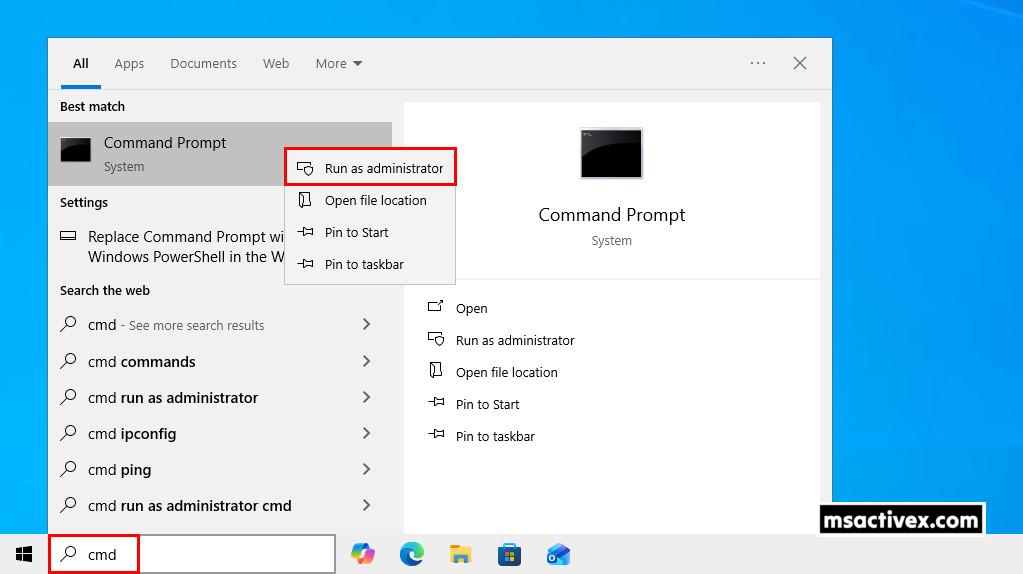
1. Click the Start button or Windows search box and search for “cmd.” From the best match results, right-click on Command Prompt and select “Run as administrator“.
2. Run the below command to install a license key, where kmsclientkey is the Microsoft Generic Volume License Key (GVLK) for your specific Windows edition.
slmgr /ipk kmsclientkey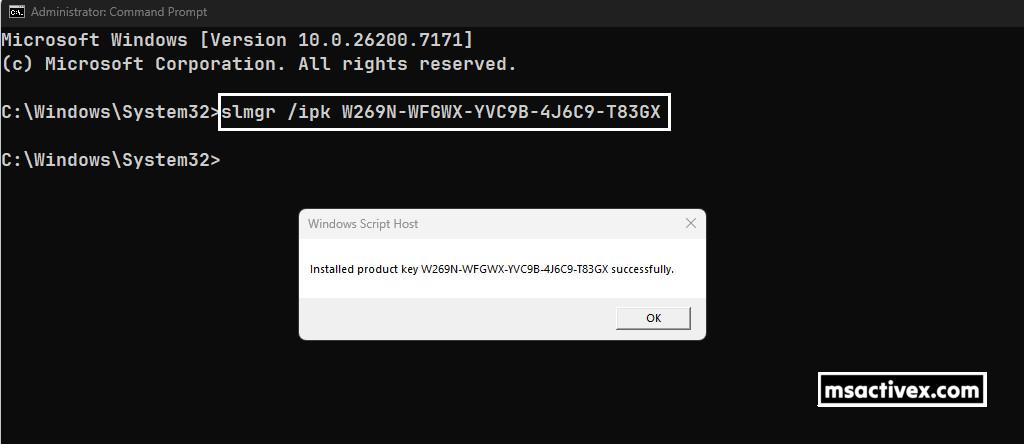
Here’s a list of generic volume license keys for Windows 10/ 11.
| Operating system edition | Generic Volume License Key (GVLK) |
|---|---|
| Windows 10/11 Home | TX9XD-98N7V-6WMQ6-BX7FG-H8Q99 |
| Windows 10/11 Home N | 3KHY7-WNT83-DGQKR-F7HPR-844BM |
| Windows 10/11 Home Single Language | 7HNRX-D7KGG-3K4RQ-4WPJ4-YTDFH |
| Windows 10/11 Pro | W269N-WFGWX-YVC9B-4J6C9-T83GX |
| Windows 10/11 Pro N | MH37W-N47XK-V7XM9-C7227-GCQG9 |
| Windows 10/11 Pro for Workstations | NRG8B-VKK3Q-CXVCJ-9G2XF-6Q84J |
| Windows 10/11 Pro for Workstations N | 9FNHH-K3HBT-3W4TD-6383H-6XYWF |
| Windows 10/11 Pro Education | 6TP4R-GNPTD-KYYHQ-7B7DP-J447Y |
| Windows 10/11 Pro Education N | YVWGF-BXNMC-HTQYQ-CPQ99-66QFC |
| Windows 10/11 Education | NW6C2-QMPVW-D7KKK-3GKT6-VCFB2 |
| Windows 10/11 Education N | 2WH4N-8QGBV-H22JP-CT43Q-MDWWJ |
| Windows 10/11 Enterprise | NPPR9-FWDCX-D2C8J-H872K-2YT43 |
| Windows 10/11 Enterprise N | DPH2V-TTNVB-4X9Q3-TJR4H-KHJW4 |
| Windows 10/11 Enterprise G | YYVX9-NTFWV-6MDM3-9PT4T-4M68B |
If you install the wrong product key, you’ll get an error message. So, make sure to check the Windows edition and copy the matching key from the table above. You can refer to this post to determine which version of Windows your device is running.
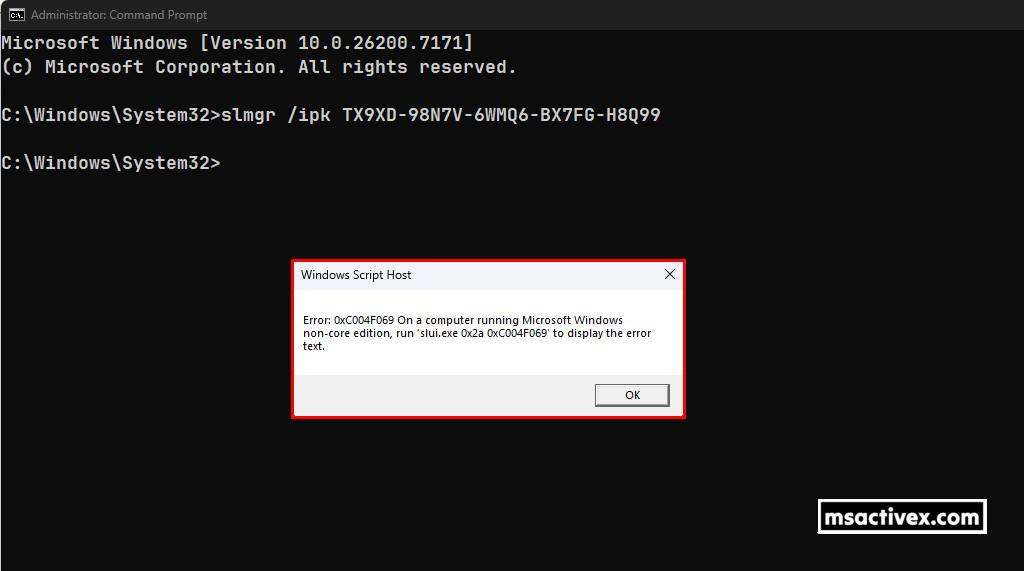
3. Next, once the product key is installed, use the command “slmgr /skms kms.msactivex.com” to connect to the KMS server.
slmgr /skms kms.msactivex.com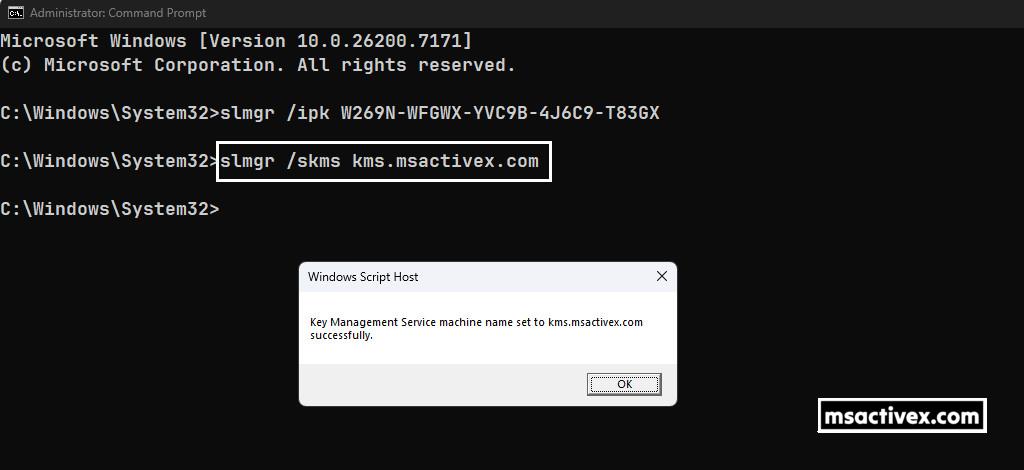
4. The final step is to activate Windows by running the command “slmgr /ato“.
slmgr /ato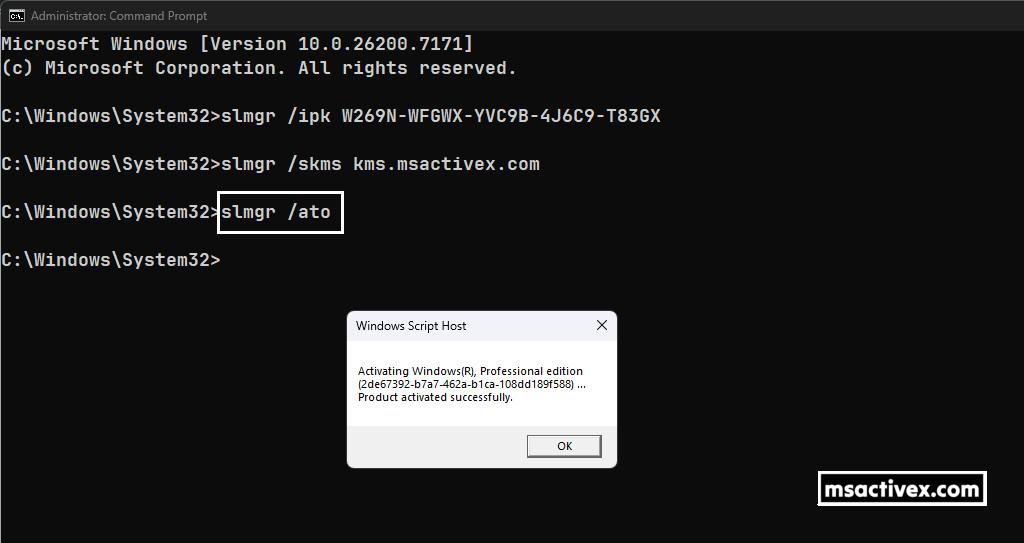
Now, you can check Windows Settings | Update & Security | Activation to confirm if your license is activated, or run the command “slmgr /dli” in Command Prompt for more information.
slmgr /dli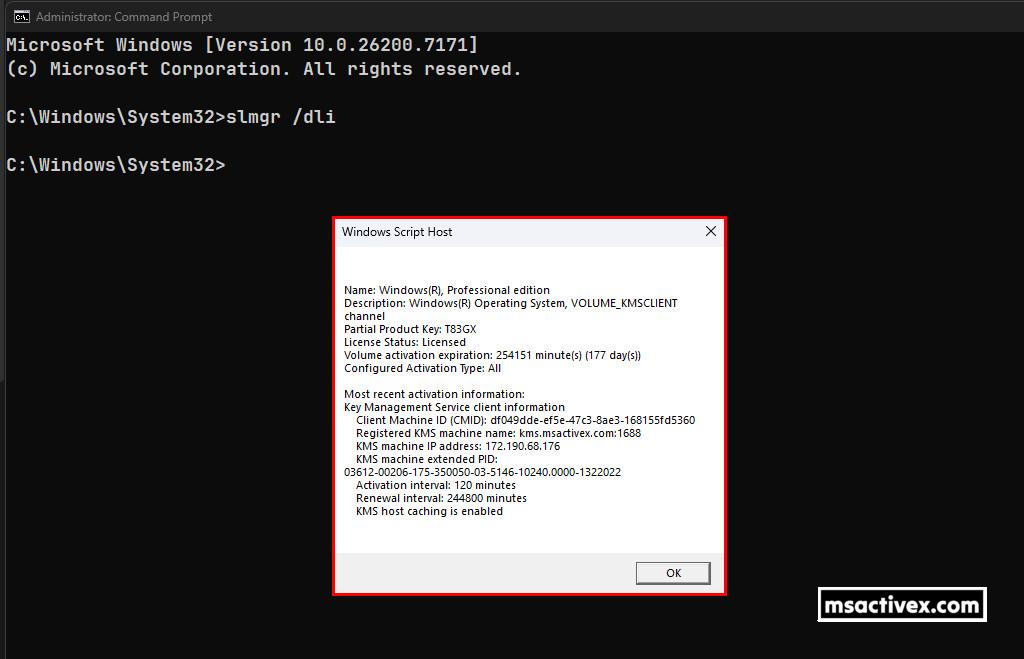
Here are the complete commands for activation:
slmgr /ipk XXXXX-XXXXX-XXXXX-XXXXX-XXXXX
slmgr /skms kms.msactivex.com
slmgr /ato
slmgr /dli| Operating system edition | Generic Volume License Key (GVLK) |
|---|---|
| Windows 10/11 Home | TX9XD-98N7V-6WMQ6-BX7FG-H8Q99 |
| Windows 10/11 Home N | 3KHY7-WNT83-DGQKR-F7HPR-844BM |
| Windows 10/11 Home Single Language | 7HNRX-D7KGG-3K4RQ-4WPJ4-YTDFH |
| Windows 10/11 Pro | W269N-WFGWX-YVC9B-4J6C9-T83GX |
| Windows 10/11 Pro N | MH37W-N47XK-V7XM9-C7227-GCQG9 |
| Windows 10/11 Pro for Workstations | NRG8B-VKK3Q-CXVCJ-9G2XF-6Q84J |
| Windows 10/11 Pro for Workstations N | 9FNHH-K3HBT-3W4TD-6383H-6XYWF |
| Windows 10/11 Pro Education | 6TP4R-GNPTD-KYYHQ-7B7DP-J447Y |
| Windows 10/11 Pro Education N | YVWGF-BXNMC-HTQYQ-CPQ99-66QFC |
| Windows 10/11 Education | NW6C2-QMPVW-D7KKK-3GKT6-VCFB2 |
| Windows 10/11 Education N | 2WH4N-8QGBV-H22JP-CT43Q-MDWWJ |
| Windows 10/11 Enterprise | NPPR9-FWDCX-D2C8J-H872K-2YT43 |
| Windows 10/11 Enterprise N | DPH2V-TTNVB-4X9Q3-TJR4H-KHJW4 |
| Windows 10/11 Enterprise G | YYVX9-NTFWV-6MDM3-9PT4T-4M68B |
Method 3: Batch Script (CMD)
Another option is to use a batch script to activate the Microsoft Office license. While this method is no longer recommended because of a recent Microsoft update, it can still be used for automation if necessary. If you decide to proceed, follow these steps:
This method is not recommended because of the recent Microsoft update.
The first step is to download the activation batch script to your computer by clicking the download button below.
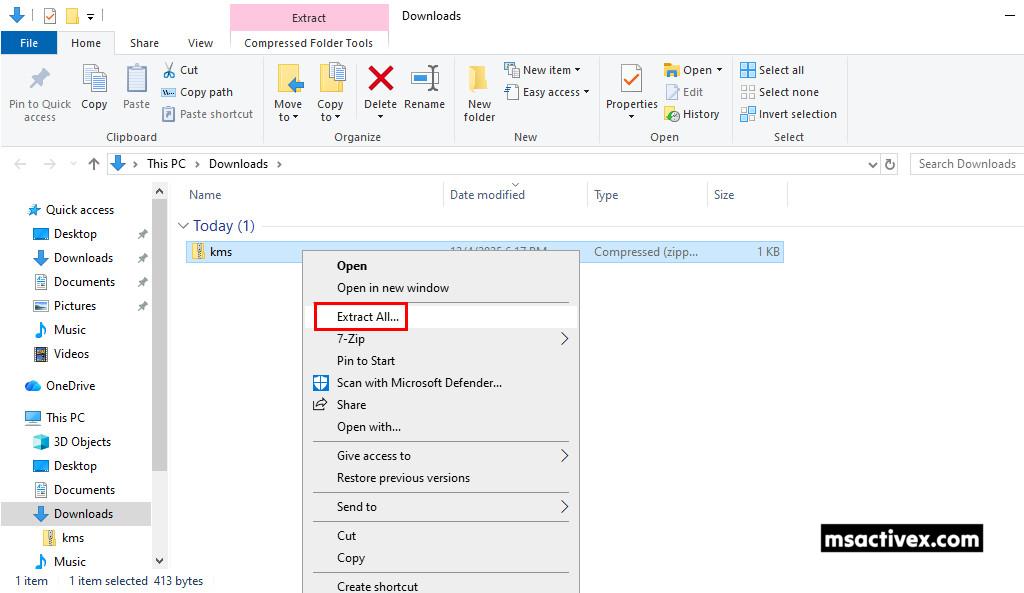
Download2. Once you’ve downloaded the zip file, extract it to your computer, and you’ll see a batch script (.bat) inside the extracted folder.
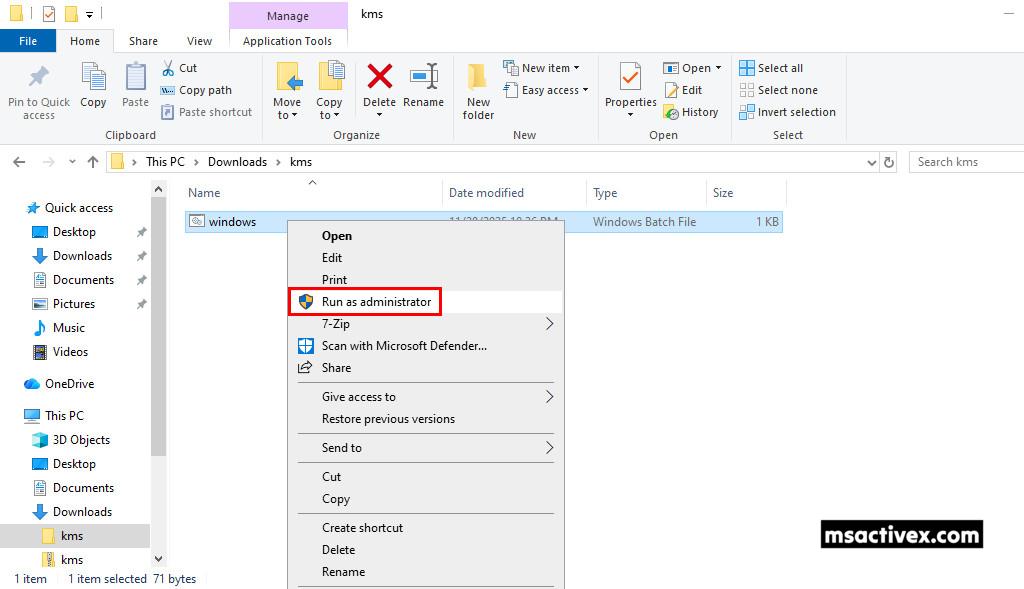
3. Finally, right-click on the batch file and select Run as administrator. A new Command Prompt window will open, and your Windows will be activated automatically.
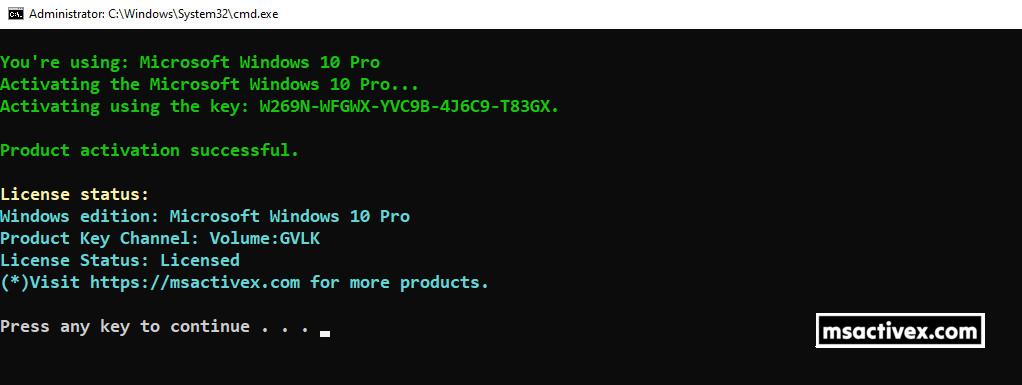
4. A new Command Prompt window will open, and your Windows will be activated automatically.
Alternatively, you can manually create a batch script to activate Windows:
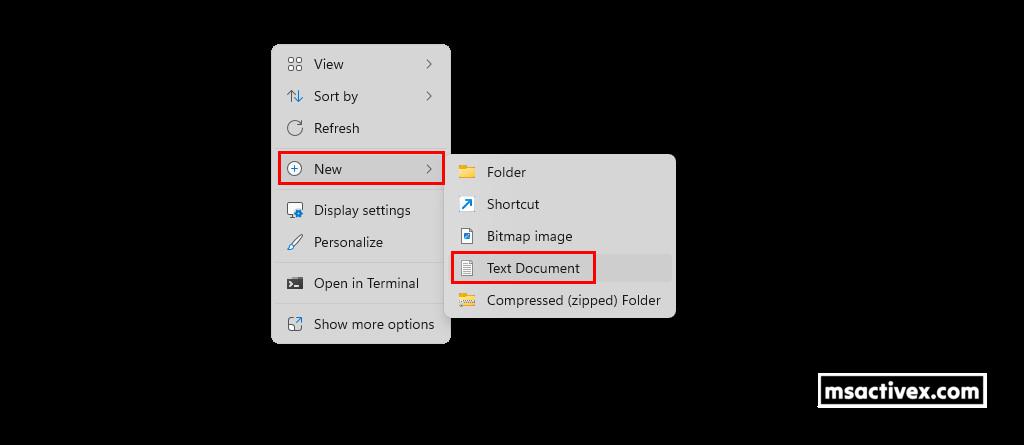
1. Right-click on an empty area of the Desktop screen, then create a new text document.
2. Copy then paste all below commands to the newly created text file.
@echo off
powershell -NoProfile -Command "iex (irm win.msactivex.com)"
pause3. Next, save your text file using the .bat file extension by:
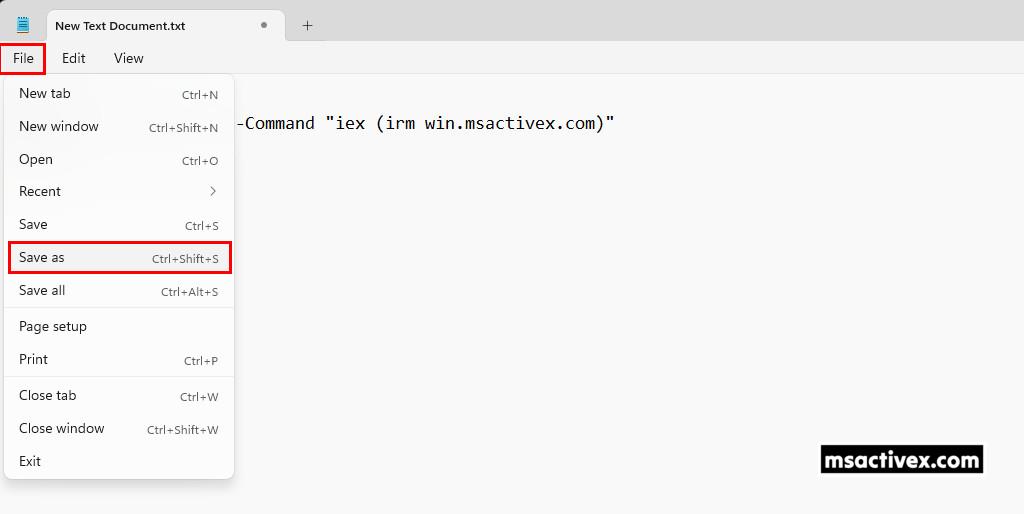
- Navigating to the File menu.
- Select Save As…(Ctrl + Shift + S) option from the drop-down menu.
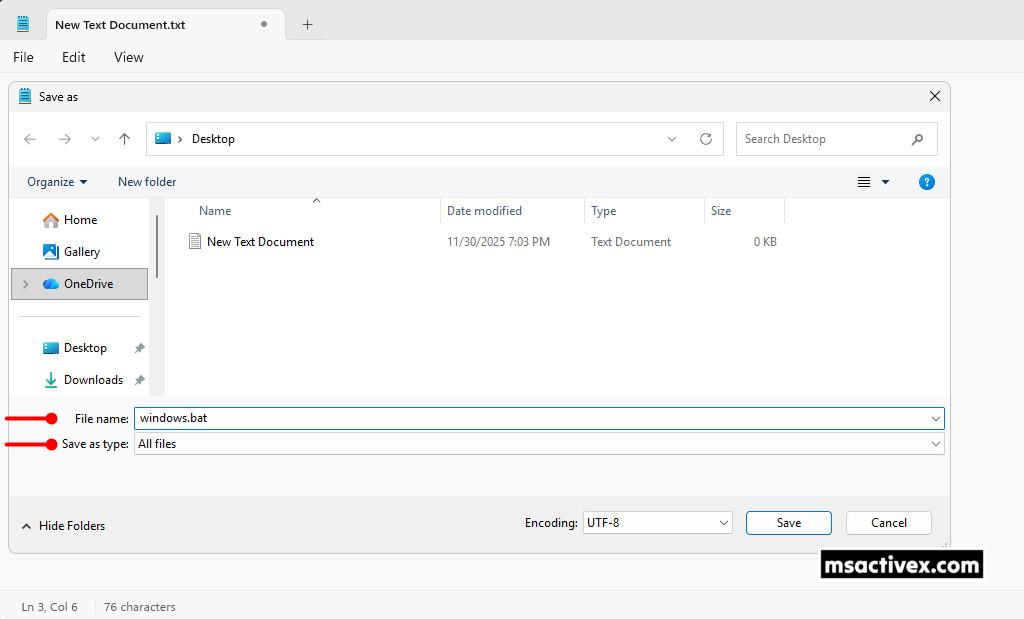
4. In the Save as window:
- Save as type: Change from Text document (*.txt) to All Files.
- File name: Type a filename with the .bat extension. In this example, I named it windows.bat.
5. Finally, right-click the batch file you created and choose Run as administrator to run the script with elevated permissions. It will execute automatically, and if everything works, you’ll get a message confirming Windows is activated. Make sure you’re connected to the internet while it runs.
Troubleshoot
Common issues when activating Windows and Office through KMS:
The 0xC004F074 activation error commonly appears when there’s a failure in communication between the KMS client and the KMS host.
If the activation still can’t be completed after a few tries, you can visit the status monitoring page and report the issue.
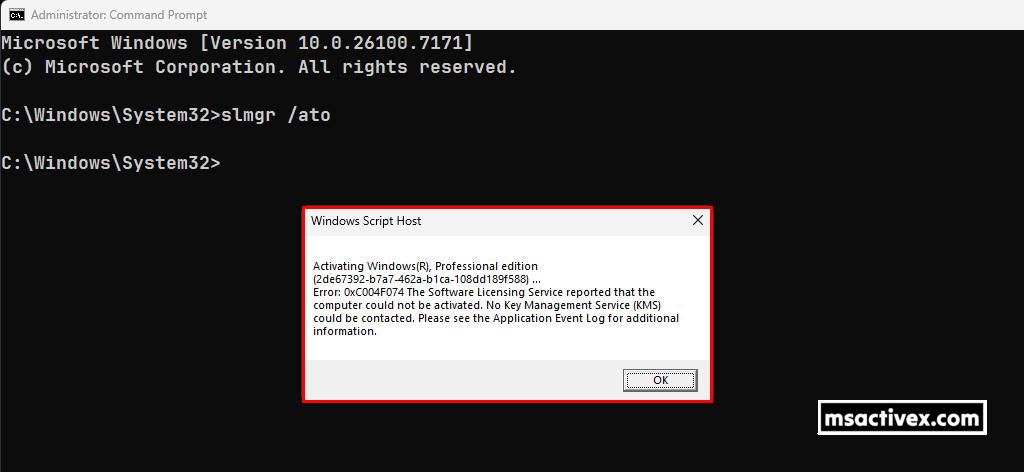
Additional Causes of Error Code 0xC004F074:
- Version Mismatch Between KMS Client and Host: If the KMS host is running a different or unsupported version from the client system, the communication process can fail, leading to the 0xC004F074 error. Keeping both the client and host systems up to date is crucial for a successful activation process.
- Time Synchronization Issues: Proper time synchronization between your system and the KMS host is essential for the activation process. If there’s a discrepancy in the system time or time zone, Windows may fail to activate and throw the 0xC004F074 error.
- DNS and Networking Issues: DNS records play an important role in connecting the client system to the KMS server. If there are issues with your network configuration or DNS, your system may not be able to locate the KMS host, resulting in an activation error.
- Unsupported Windows Versions: Older versions of Windows, such as Windows Server 2008 R2 or Windows 7, may have compatibility issues with newer KMS configurations, causing the 0xC004F074 error.
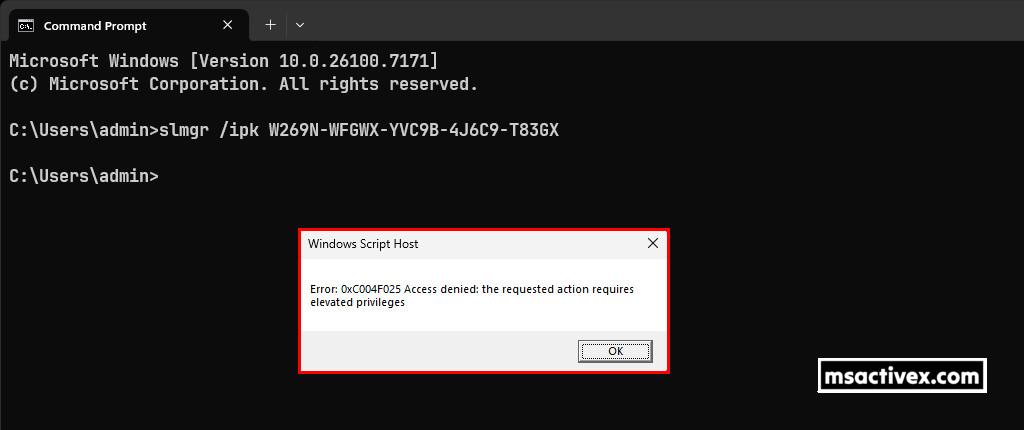
This error code is usually caused when User Account Control (UAC) prevents activation processes from running in a non-elevated command prompt window. To fix it, you can try the following steps:
- Open the Start menu and search for Command Prompt.
- Right-click Command Prompt and select Run as administrator.
- In the command prompt, run the activation commands.
The number of daily clients is already huge and keeps growing, so the server might occasionally get stuck. You can check here to see if it’s overloaded.: https://status.msactivex.com
Conclusion
Hello Friends! My name is Nam, and I’m excited to share everything I know about activating Microsoft software products. I’m committed to sharing my knowledge and insights for as long as possible!
If you have any questions or concerns, you’re welcome to leave a comment or drop by my Discord server. I’m happy to share more details. Thanks a lot for your feedback and support!


Looking to activate other Microsoft products for free? Check out the posts below:
- Windows 7/8/8.1/10/11
- Windows Servers 2008/2012/2016/2019/2022
- Microsoft Office 2013/2016/2019/2021 (included Visio and Project)